Introduction
Interactive videos are a powerful tool in e-learning, allowing for dynamic demonstrations of both physical and web-based tasks. With Articulate Storyline 360 and the extensive Articulate 360 Content Library, creating interactive videos has never been easier. This guide will delve into the features and steps to make your videos more engaging and interactive. Let’s explore the essential tools and techniques available in Storyline 360.
Articulate Storyline 360: An Overview
Why Use Articulate and Storyline for E-Learning?
Articulate Storyline 360 is renowned for its user-friendly interface and robust features, making it a top choice for e-learning professionals. The platform offers a range of tools to enhance learning experiences through interactive content. With Storyline 360, you can create immersive scenarios, quizzes, and interactive videos that captivate learners.
Key Features of Storyline 360 for Interactive Videos
Storyline 360 comes equipped with several features specifically designed to enhance video interactivity:
- Layers: These allow you to display additional information while the video is playing or paused.
- Hotspots: Clickable areas on the screen that encourage user interaction.
- Cue Points: Bookmarks on the timeline that trigger events, such as pausing the video or displaying questions.

Using Layers for Enhanced Interactivity
Layers in Storyline 360 allow you to create complex interactions by displaying additional content over your video. For example, you can show explanatory text, images, or additional videos to enrich the learning experience. This feature is particularly useful for providing context or additional instructions without interrupting the main video flow.
Hotspots: Encouraging Learner Interaction
Hotspots are an excellent way to make your videos more interactive. By placing clickable areas on the screen, you can prompt learners to engage directly with the content. This can be used to explore different parts of a scene, answer questions, or navigate through the video in a non-linear fashion.
Cue Points: Synchronizing Actions with Video
Cue points are invaluable for timing interactions within your video. They allow you to pause the video at specific moments, trigger questions, or display layers. This precise control over the video’s timeline ensures a smooth and engaging learning experience.
Creating Interactive Videos: Step-by-Step Guide
Step 1: Adding Video to Articulate Storyline
1. Click on “Insert” in the top menu.
2. Navigate to the “Media” section.
3. Select “Video” and then choose “Video from File.”
4. Choose your desired video and click “Open.”

Step 2: Adding Cue Points on the Timeline
1. Click on “Timeline” at the bottom to open the timeline view.
2. Select the point where you want to pause the video, right-click on the timeline, and select “Create Cue Point at Playhead.”
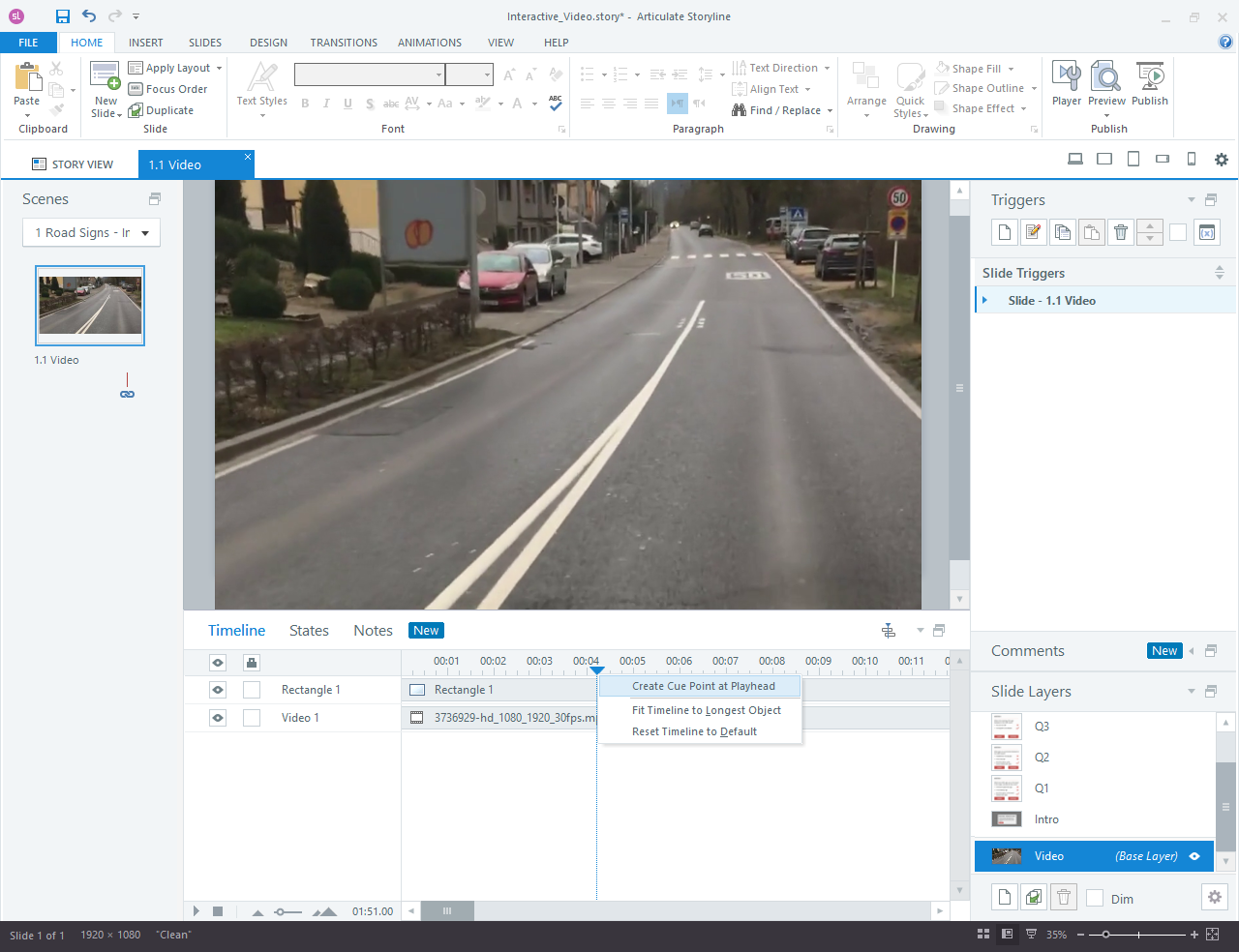
3. Add as many cue points as necessary, depending on the number of questions or interactive elements you plan to include.
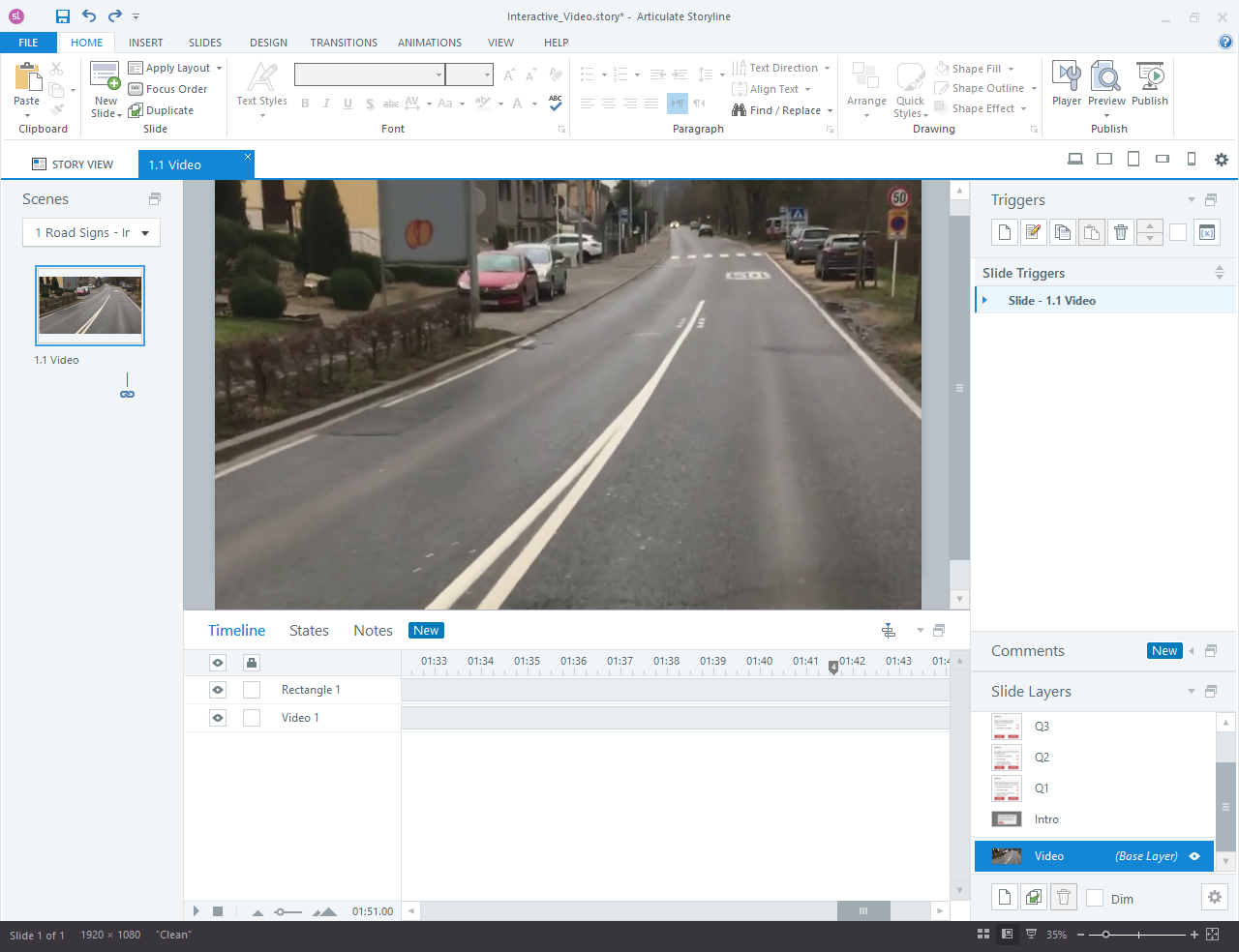
Step 3: Adding Triggers to Pause the Timeline and Display a Question
1. Go to the triggers panel and click on “Create New Trigger.”
2. Set the trigger to show the layer “Question 1” when the timeline reaches cue point 1.
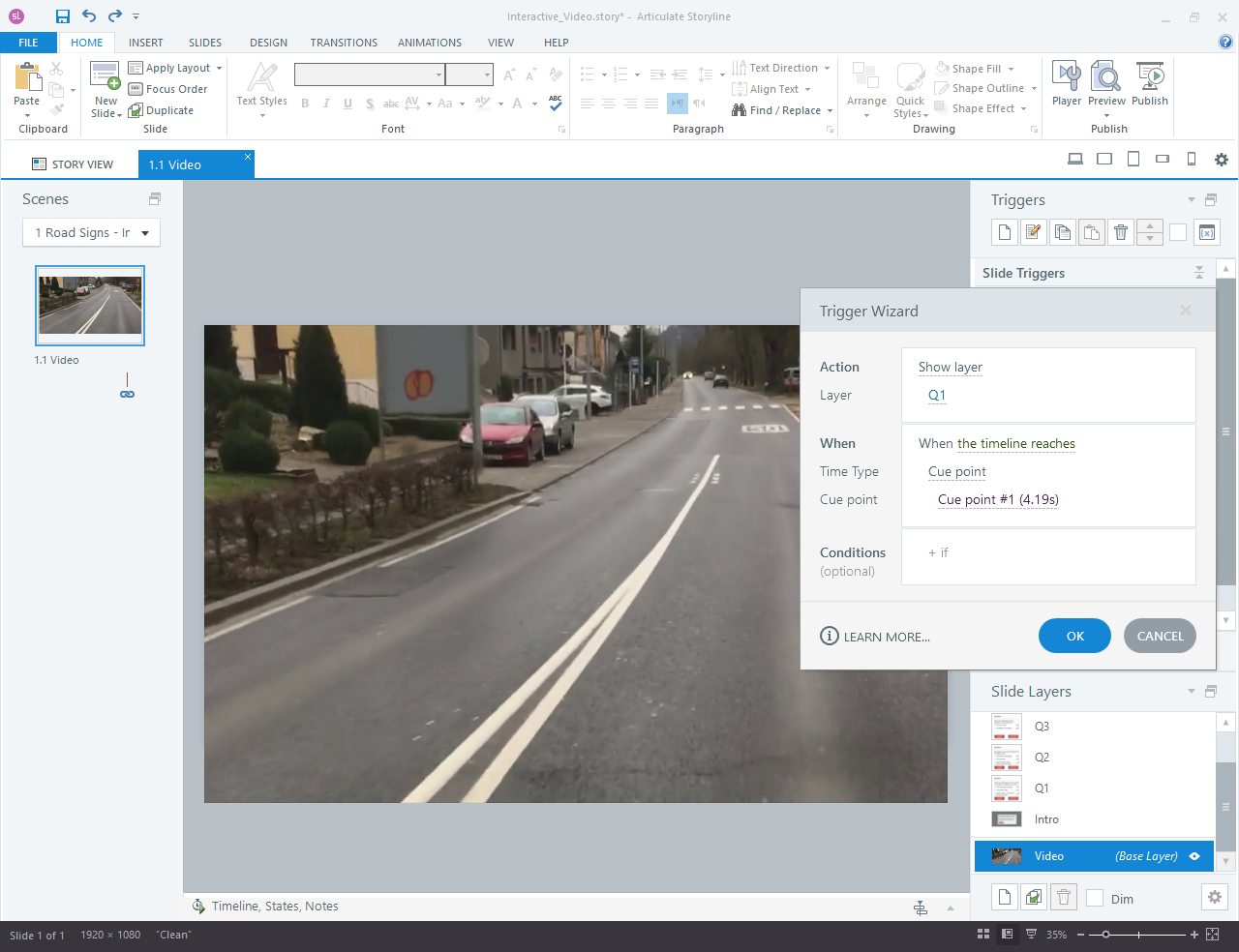
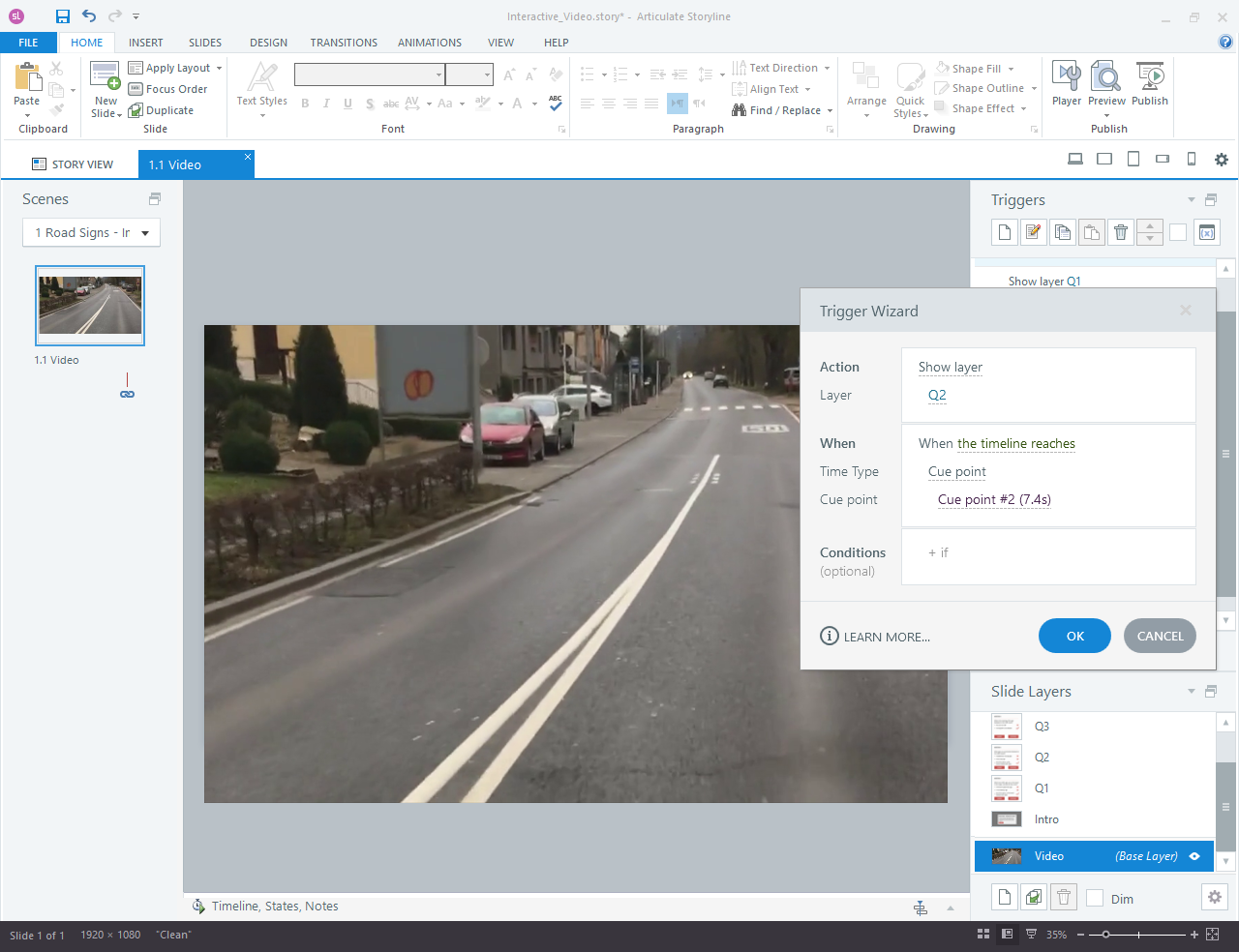
3. Repeat this for each cue point, adjusting the layer shown to correspond with the respective question.
Step 4: Adjusting Settings in the Layer Properties
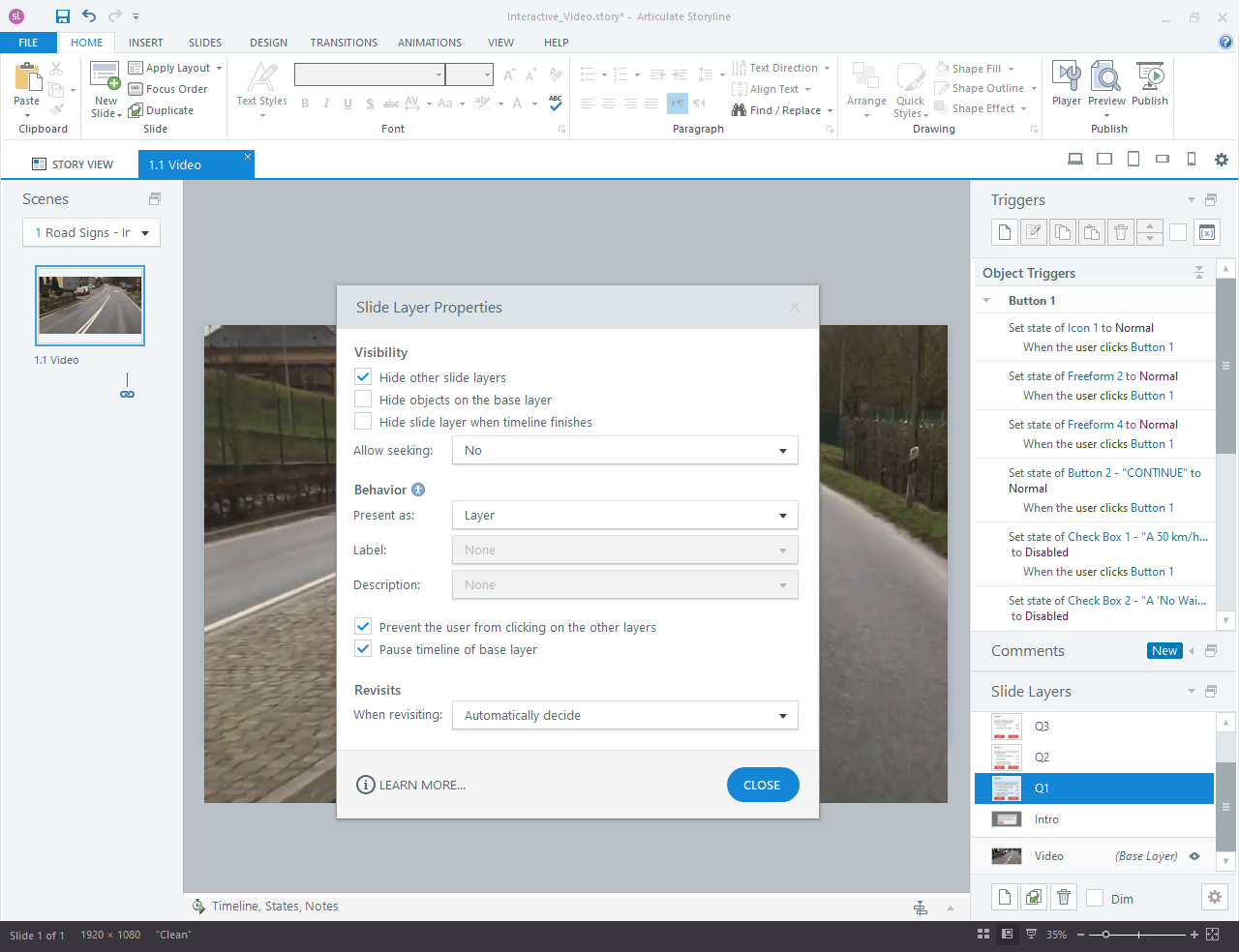
1. Navigate to the layer and click on the settings icon at the bottom right corner of the screen.
2. In the popup, enable “Pause timeline on base layer.” This ensures the video pauses when a question is displayed and resumes after the learner interacts with the question.
Conclusion
Creating interactive videos with Articulate Storyline 360 is a powerful way to enhance your e-learning content. By utilizing features like layers, hotspots, and cue points, you can create engaging and effective educational experiences that keep learners actively involved. Follow the steps outlined in this guide to transform your videos into interactive masterpieces.
eLearning Services
Custom Elearning Solutions
Our bespoke eLearning solutions cover everything from personalized course creation to effortless LMS integration, delivering impactful digital learning experiences.
Learn more about our Custom Elearning Solutions.
Elearning Translation and Localization
We offer expert eLearning translation and localization services, guaranteeing your content connects seamlessly with a diverse international audience.
Learn more about our Elearning Translation and Localization.
Frequently Asked Questions (FAQs)
Q1. What is Articulate Storyline 360?
A. Articulate Storyline 360 is a leading e-learning authoring tool that allows creators to build interactive and engaging online courses. It offers a wide range of features, including video interactivity, quizzes, and immersive scenarios.
Q2. How do layers enhance interactive videos in Storyline 360?
A. Layers allow you to display additional information, such as text, images, or videos, on top of your main video. This feature is useful for providing context or additional instructions without interrupting the flow of the video.
Q3. What are hotspots in Storyline 360?
A. Hotspots are clickable areas you can place over your video to encourage user interaction. They can be used to explore different parts of a scene, answer questions, or navigate through the video.
Q4. How do cue points work in Storyline 360?
A. Cue points are markers on the video timeline that trigger events, such as pausing the video or displaying a question. They allow for precise control over the video’s interactivity, ensuring a smooth learning experience.
Q5. Can I add questions to my interactive video in Storyline 360?
A. Yes, you can add questions to your interactive video by using layers and cue points. When the video reaches a cue point, it can pause and display a question layer, which resumes once the learner has interacted with it.
Q6. What are the benefits of using interactive videos in e-learning?
A. Interactive videos engage learners more effectively than passive videos. They encourage active participation, improve retention, and provide a more immersive learning experience.